How to Batch Convert HEIC to JPG: A Guide for iPhone Users
Learn how to effortlessly batch convert HEIC photos to JPG format on your iPhone or PC. Follow our step-by-step guide to ensure your photos are compatible with every device.
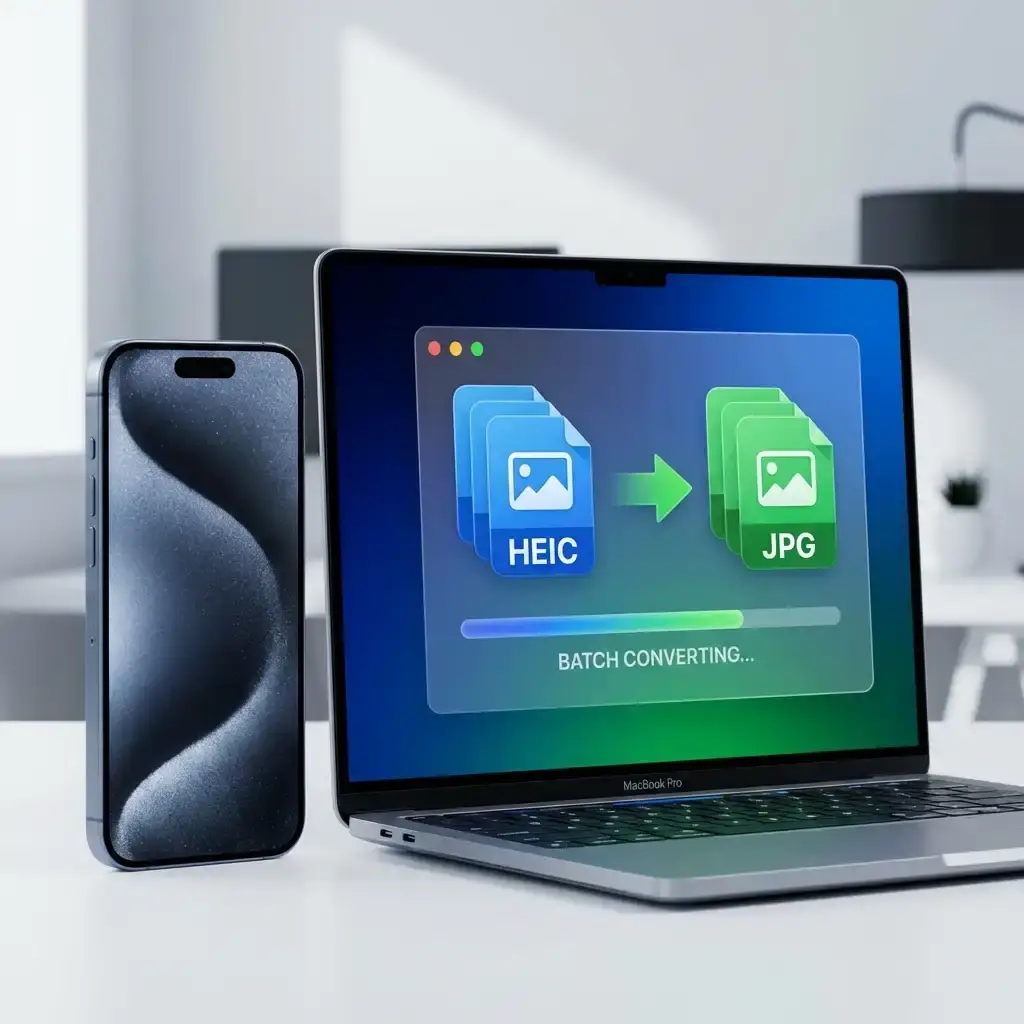
If you're an iPhone user, you've likely encountered the HEIC (High Efficiency Image Container) format. While HEIC is great for saving space—offering up to twice the compression of JPEG—it can be a headache when you need to upload photos to a website or share them with non-Apple users.
The good news is that you don't have to convert them one by one. In this guide, we'll show you how to batch convert HEIC to JPG in seconds, keeping your workflow smooth and your photos accessible everywhere.
Why Apple Uses HEIC (and Why You Might Want JPG)
Since iOS 11, Apple has used HEIC as the default format for photos. It uses advanced compression that makes files about half the size of a standard JPG without losing quality. However, many Windows apps, older browsers, and social platforms still struggle to read HEIC files.
JPG remains the most compatible image format in the world. Converting to JPG ensures that your family photos, professional headshots, or product images look exactly as intended on any screen.
How to Batch Convert HEIC to JPG Online
The fastest way to handle multiple files is using a dedicated online converter. Our tool at I Love Imge is designed for speed and privacy. Here’s how to do it:
- Upload Your Files: Drag and drop your HEIC images into the converter. You can upload dozens of files at once.
- Select Output Format: Choose JPG as your target format.
- Set Quality: Adjust the quality slider if you need a specific file size.
- Download: Click convert and download your ZIP file containing all your new JPGs.
Benefits of Using an Online Tool
- No Software Required: Works directly in your browser on Mac, Windows, or Linux.
- High-Speed Processing: Batch conversion happens in seconds, not minutes.
- Privacy First: Your files are processed securely and deleted automatically after 24 hours.
Alternative Methods: Windows and Mac
If you prefer offline methods, both major operating systems have built-in tools:
On Mac (using Preview)
Select all your HEIC files, right-click and open with Preview. Go to File > Export Selected Images, click Options, and change the format to JPEG.
On Windows (using Photos App)
Open an image in the Photos app, click the three dots, and select Save As. Unfortunately, Windows doesn't make batch conversion as easy as an online tool or Mac's Preview, which is why most PC users prefer an online batch converter.
Tips for Maintaining Quality During Conversion
When you convert from HEIC to JPG, you are moving from one compressed format to another. To keep your photos looking sharp:
- Start with High-Quality Sources: Don't convert images that have already been heavily compressed.
- Use 90% Quality or Higher: For most purposes, a 90% quality setting provides the perfect balance between file size and clarity.
- Keep Your Originals: Always keep your original HEIC files as a 'master' copy until you've verified the JPGs.
Conclusion
Compatibility shouldn't stand in the way of your creativity. Whether you're moving photos from your iPhone to your PC or prepping a portfolio for the web, knowing how to batch convert HEIC to JPG is a vital skill.
Ready to get started? Head over to our Convert page and transform your photos in seconds!
FAQ
What is the difference between HEIC and JPG?
HEIC uses modern compression to provide smaller file sizes than JPG at the same quality. However, JPG is universally compatible with almost every device and software.
Is HEIC to JPG conversion lossless?
HEIC to JPG is a 'lossy' conversion, but if you use a high-quality setting ($90\%$ or higher), the visual difference is usually invisible to the human eye.
Can I convert HEIC to JPG on my iPhone without an app?
Yes, you can go to Settings > Photos and select 'Automatic' under 'Transfer to Mac or PC', or you can use the Files app to 'Save as' JPG.
Can I batch convert more than 10 images at once?
Yes, our online tool supports batch processing for multiple images to save you time and effort.