AVIF to JPG: A Quick and Easy Conversion Guide
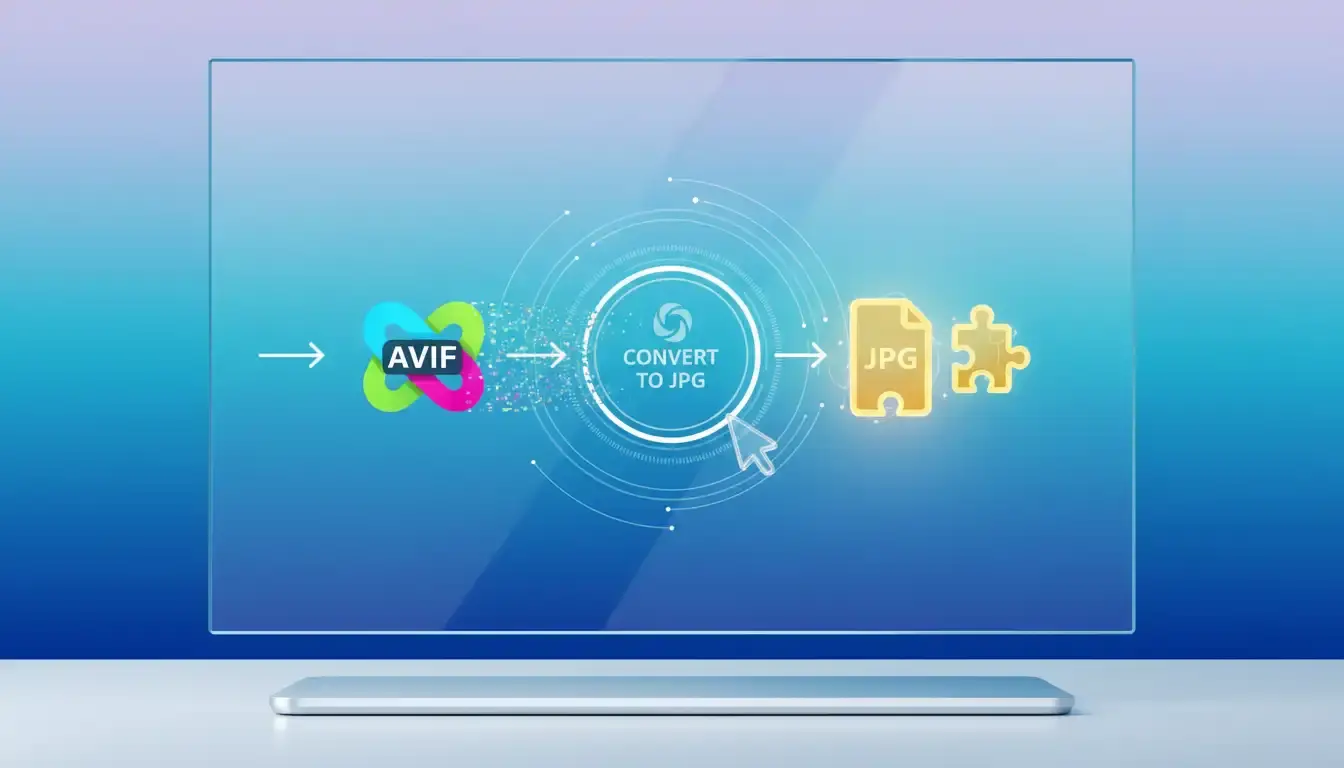
Need to convert AVIF to JPG? Our quick and easy tutorial walks you through the process, so you can use your AVIF images anywhere.
Did you know that over 70% of online images are in JPG format? It's a widely accepted standard for web graphics.
But, with new image formats like AVIF coming out, users need to convert their images. If you want to change your AVIF images to a more compatible format, this guide is for you.
We'll show you how to convert AVIF images using an image conversion tool. We'll also explain the differences between these formats. And help you choose the best one for your needs.
Understanding AVIF and JPG Formats
The world of image formats is vast, but AVIF and JPG are two formats that stand out. They have unique features and are widely used. Knowing about these formats is key when converting images.
What is the AVIF Format?
The AVIF format is new but quickly gaining popularity. It offers impressive compression and high-quality images. AVIF supports both lossy and lossless compression, making it versatile for many uses. It's seen as a better choice than older formats, with better compression and features like transparency and HDR.
AVIF is great for web use because it keeps image quality high while making files smaller. This is important for fast loading times and good bandwidth.
What is the JPG Format?
JPG, or JPEG, is a very common image format. It balances image quality and file size well. It uses lossy compression, which means some data is lost to make files smaller. But it does this in a way that doesn't hurt the image quality too much. JPG is best for photos and images with lots of colors.
JPG is popular because it works well on many devices and software. This makes it a reliable choice for sharing and storing images.
Why Convert AVIF to JPG?
AVIF has many benefits, but its limited support makes JPG conversion necessary. AVIF has better compression and image quality. Yet, many devices, browsers, and apps still don't fully support it.
Compatibility Considerations
The main reason to convert AVIF to JPG is for better compatibility. JPG is widely accepted and works well on almost all devices and browsers. It's the top choice for sharing images online.
Converting AVIF to JPG makes your images accessible to more people. This is true, no matter what device or browser they use.
Use Cases for Conversion
There are many use cases for converting AVIF to JPG. For example, photographers and graphic designers often need to share their work on platforms that don't support AVIF. Also, when developing websites or apps, using JPG images can make things simpler and ensure more compatibility.
Converting AVIF to JPG is also helpful when working with older systems or software. These often don't support the newer AVIF format.
Before You Convert: Important Considerations
Before you start converting your AVIF files to JPG, there are a few things to think about. Knowing these will help you make a smart choice. This way, your images will be converted well.
When you switch image formats, the quality and size of your images can change. The right image conversion tool is key to a good outcome.
Quality Loss During Conversion
Switching from AVIF to JPG might make your image a bit less sharp. This is because JPG uses lossy compression. To keep your image looking good, choose a tool that lets you tweak the quality settings.
Some tools even offer ways to fine-tune the compression. This helps keep more of your image's original quality.
File Size Changes
AVIF files are more compact than JPGs, so switching to JPG makes them bigger. Knowing about these file size changes helps you manage your storage better. Also, bigger files can slow down websites or when sharing images.
Understanding these points helps you handle the conversion better. This way, you get the best results for your images.
Methods to Convert AVIF to JPG
There are several ways to change AVIF to JPG. Each method has its own benefits. You can pick the one that fits your needs best. This depends on how easy it is to use, the quality of the image, and how many files you need to convert.
Online Converters
Online tools like CloudConvert, Convertio, and Ezgif make it easy to convert AVIF to JPG. You don't need to install any software. These online image converters work on any device with a web browser. They also support converting many files at once.
Desktop Converters
If you prefer working offline or need extra features, desktop software is a good choice. Tools like XnConvert and IrfanView are great for this. They give you more control over the conversion and support many image formats.
Command-Line Tools
For those who are tech-savvy, command-line tools like ImageMagick and FFmpeg are powerful. They allow for detailed conversions, including batch jobs and custom settings. This makes them perfect for professionals.
Converting AVIF to JPG Using Online Tools
Online tools like Iloveimge; Convertio and CloudConvert make it easy to change AVIF to JPG. They offer a simple way to convert images without needing to know a lot about technology.
Step-by-Step Guide for iloveimge.com
To use iloveimge, start by visiting their website. Click on the "Select Files" button to upload your AVIF file. Then, choose JPG as the output format.
Convertio lets you adjust the quality settings. After setting your preferences, click on "Convert" to start the conversion process. Once it's done, you can download your JPG file.
Step-by-Step Guide for CloudConvert
CloudConvert works in a similar way. Begin by going to the CloudConvert website and uploading your AVIF file using the interface. Next, pick JPG as the output format.
CloudConvert also lets you customize the conversion settings. After setting your preferences, initiate the conversion by clicking on "Convert". When it's finished, you can download your JPG file from CloudConvert.
Both Convertio and CloudConvert are easy to use and efficient. By following these guides, you can quickly convert your images using either platform.
Using Desktop Software for AVIF to JPG Conversion
Desktop software makes converting AVIF files to JPG easy. Tools like XnConvert and IrfanView offer advanced features. They are great for offline work or handling big files and many conversions at once.
Converting with XnConvert
XnConvert is a strong tool that works with many image types, including AVIF. To start, add your files to XnConvert. You can then tweak settings and filters to get the best JPG quality.
After setting everything up, XnConvert quickly converts your files. This makes sure your JPGs look just right.
Converting with IrfanView
IrfanView is another top choice for converting AVIF to JPG. It's fast and easy to use. Just load your AVIF file and adjust settings as needed.
IrfanView also does batch conversions. This is perfect for those who need to change many files at once.
Using XnConvert and IrfanView gives you control over your conversions. This ensures your JPGs are exactly what you need.
Command-Line AVIF to JPG Conversion
If you're okay with using the command line, tools like ImageMagick and FFmpeg can help with AVIF to JPG conversions. These tools have advanced features and flexible options. They're great for users who want more control over their conversions.
Using ImageMagick
ImageMagick is a versatile command-line tool that works with many image formats, including AVIF and JPG. To convert an AVIF file to JPG, use the convert command. For example: magick convert input.avif output.jpg. This command turns the input.avif file into a JPG named output.jpg.
ImageMagick lets you customize the conversion. You can adjust the quality and compression level.
Using FFmpeg
FFmpeg is another strong command-line tool for AVIF to JPG conversion. It's mainly for video processing but also works for images. To convert AVIF to JPG with FFmpeg, use this command: ffmpeg -i input.avif output.jpg. This command changes the input.avif file to a JPG.
FFmpeg has many options to tweak the conversion. You can set quality and other parameters to change the output.
Converting AVIF to JPG on Different Operating Systems
Converting AVIF files to JPG is easy, no matter if you're on Windows, macOS, or Linux. Each system has its own tools and ways to do this conversion.
Windows-Specific Methods
On Windows, you can use XnConvert or IrfanView to change AVIF to JPG. These programs are easy to use and let you customize the conversion. You can also use online converters from your browser for a quick fix.
macOS-Specific Methods
For those on macOS, you can use Preview or third-party apps like GraphicConverter to convert AVIF to JPG. These tools make sure your images work well with other formats.
Linux-Specific Methods
Linux users can use ImageMagick or FFmpeg from the command line. These tools give you control and flexibility, perfect for those who like to get into the details.
Converting AVIF to JPG is simple, no matter your operating system. Just pick the right tool for your needs, and you'll get great results.
Batch Converting Multiple AVIF Files to JPG
Converting many AVIF files to JPG at once saves a lot of time. This is great for handling lots of files. You can use desktop software or command-line tools for this.
Batch Conversion with Desktop Software
Software like XnConvert and IrfanView are good for converting AVIF files to JPG. They have easy-to-use interfaces. XnConvert lets you add files, adjust settings, and convert them all at once. IrfanView also has a batch conversion feature for many file types, including AVIF and JPG.
To use XnConvert, just add your AVIF files, pick JPG as the output, and set your options. XnConvert will then convert all your files quickly.
Batch Conversion with Command-Line Tools
For those who like command-line tools, ImageMagick is a great choice. ImageMagick can do many image tasks, including batch conversions. You can use a simple command to convert AVIF files to JPG, setting input and output directories.
With ImageMagick, you just need a basic command. You can customize it to change the JPG quality as needed.
Preserving Image Quality When Converting AVIF to JPG
To keep your images looking great, it's key to know how to keep quality when switching from AVIF to JPG. If not done right, this process can lower image quality. But, with the right methods and tools, you can keep your images looking sharp.
Optimal Settings for Quality Retention
Choosing the right settings is crucial for keeping image quality. Pick the highest quality options in your conversion tool. For example, adjust the quality level, chroma subsampling, and compression level based on your image type. High-detail images need a higher quality setting to minimize quality loss.
Knowing your image type, like a photo or graphic, helps in setting the right conversion options. Different tools offer different levels of control over these settings. Try different settings and preview the results to find the best balance between quality and file size.
Post-Conversion Image Enhancement
After converting to JPG, you might want to enhance the image further. Simple tweaks like sharpening can bring back lost clarity. Adjusting brightness and contrast can also make the image look better. For more detailed improvements, use image editing software for noise reduction or local adjustments.
Comparing your converted image with the original can help spot areas for improvement. By making specific adjustments, you can ensure your JPG images are top-notch. This way, they maintain the original's intent and detail.
Conclusion
You now know how to change AVIF to JPG using different tools and software. The steps are easy, and picking the best method gives you great results.
It's important to know the differences between AVIF and JPG. This helps you choose the right tool for your needs. You'll consider things like compatibility, quality loss, and file size changes.
Whether you use online tools, desktop software, or command-line tools, the secret is to choose the right settings. This way, your images stay clear and vibrant. It makes the conversion process very useful for your work.
FAQ
What is the difference between AVIF and JPG image formats?
AVIF is a newer format that offers better compression and quality than JPG. But JPG is more widely supported and works with many devices and software.
Why do I need to convert AVIF to JPG?
You might need to convert AVIF to JPG for compatibility or specific needs. JPG is easier to edit and works with more devices.
Will I lose image quality when converting AVIF to JPG?
Converting AVIF to JPG might reduce quality a bit. But, using the right settings and tool can help keep the quality high.
What are the best online tools for converting AVIF to JPG?
Top online tools for this conversion include Convertio and CloudConvert. They are easy to use and provide great results.
Can I batch convert multiple AVIF files to JPG at once?
Yes, you can convert many AVIF files to JPG at once. Use desktop software like XnConvert or command-line tools like ImageMagick.
How can I preserve image quality when converting AVIF to JPG?
To keep quality high, use the best settings and tools. Also, consider enhancing the image after conversion.
Are there any specific considerations for converting AVIF to JPG on different operating systems?
Yes, each operating system has its own tools for this conversion. For example, Windows users can use XnConvert, while macOS and Linux users can use ImageMagick.
Can I use command-line tools to convert AVIF to JPG?
Yes, tools like ImageMagick and FFmpeg can convert AVIF to JPG. They offer flexibility and customization.
What is the best desktop software for converting AVIF to JPG?
Top desktop software for this conversion includes XnConvert and IrfanView. They have many features and benefits.